


To protect your MikroTik RouterOS™, you should do following things:
Or, type the following command in the CLI:
You may create new groups for users with specific tasks.
You can add following rules to the input chain under /ip firewall filter (just 'copy and paste' to the router using Terminal Console or configure the relevant arguments in WinBox):
You may need to include additional rules to allow access from certain hosts, etc. Remember that firewall rules are processed in the order they appear on the list! After a rule matches the packet, no more rules are processed for it. After adding new rules, move them up using the move command.
Note, if you mis-configured the firewall and have locked yourselves out from the router, you may use MAC telnet from another router or workstation on the same LAN to connect to your router and correct the problem.
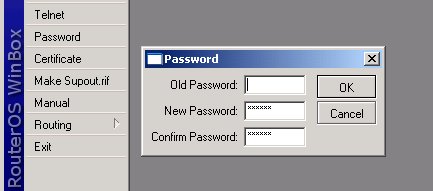
Change admin's password
Just select the Password menu within the winbox GUI, for example: Or, type the following command in the CLI:
[admin@MikroTik] > / password
old password:
new password: ******
retype new password: ******
This will change your current admin's password to what you have entered twice. Make sure you remember the password! If you forget it, there is no recovery. You need to reinstall the router!
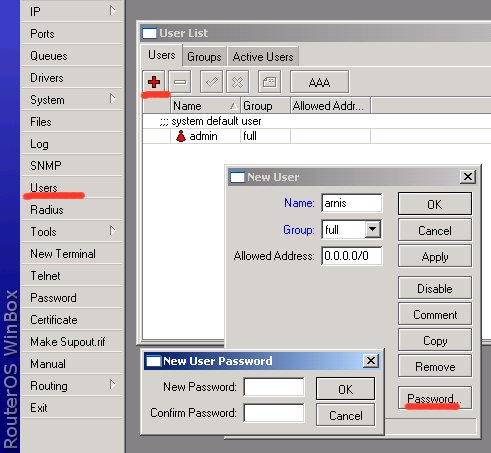
Add users to the system
You should add each user that is going to log on to the router as a separate user and specify group of privileges. Add yourself as user of group full (same as for admin), for example: You may create new groups for users with specific tasks.
Set up packet filtering
All packets with destination to the router are processed against the ip firewall filter's input chain. Note, that the input chain does not affect packets which are being transferred through the router!You can add following rules to the input chain under /ip firewall filter (just 'copy and paste' to the router using Terminal Console or configure the relevant arguments in WinBox):
/ ip firewall filter
add chain=input connection-state=established comment="Accept established connections"
add chain=input connection-state=related comment="Accept related connections"
add chain=input connection-state=invalid action=drop comment="Drop invalid connections"
add chain=input protocol=udp action=accept comment="UDP" disabled=no
add chain=input protocol=icmp limit=50/5s,2 comment="Allow limited pings"
add chain=input protocol=icmp action=drop comment="Drop excess pings"
add chain=input protocol=tcp dst-port=22 comment="SSH for secure shell"
add chain=input protocol=tcp dst-port=8291 comment="winbox"
# Edit these rules to reflect your actual IP addresses! #
add chain=input src-address=159.148.172.192/28 comment="From Mikrotikls network"
add chain=input src-address=10.0.0.0/8 comment="From our private LAN"
# End of Edit #
add chain=input action=log log-prefix="DROP INPUT" comment="Log everything else"
add chain=input action=drop comment="Drop everything else"
Use /ip firewall filter print input stats command to see how many packets have been processed against these rules. Use reset-counters-all command to reset the counters. Examine the system log file /log print to see the packets which have been dropped.
You may need to include additional rules to allow access from certain hosts, etc. Remember that firewall rules are processed in the order they appear on the list! After a rule matches the packet, no more rules are processed for it. After adding new rules, move them up using the move command.
Note, if you mis-configured the firewall and have locked yourselves out from the router, you may use MAC telnet from another router or workstation on the same LAN to connect to your router and correct the problem.


