



Showing posts with label Others. Show all posts

Friday, April 8, 2011

ATM Jadul Plus Penemunya


Nah, ini dia penemunya...


Luther Simjian Biography 1905 - 1997



Luther George Simjian adalah salah seorang Penemu dan ilmuwan yang berumur cukup panjang. Ia dilahirkan di Turki pada 28 Januari 1905, dan meninggal pada 23 Oktober 1997 dalam usia 92 tahun.
Simjian muda hijrah ke Amerika Serikat pada usia 15 tahun, karena dipisahkan dari keluarganya pada masa Perang Dunia I. Setelah bertemu dengan kerabatnya di Connecticut, dia mulai belajar mandiri dengan bekerja sebagai Fotografer sesuai dengan bidang ketertarikannya. Pada awal mulanya, Simjian belajar di Universitas Yale dengan mengambil bidang Kedokteran. Namun minatnya berubah ketika Pihak Universitas memberikan pekerjaan di Laboratorium Foto. Pada tahun 1928, dia telah menduduki jabatan Direktur pada Departemen Fotografi di Universitas tersebut.
Pada tahun 1934 Simjian pindah ke New York, di mana dia mengembangkan mesin X-ray warna dan self-posing portrait camera, yang memungkinkan subyek untuk melihat ke dalam cermin dan melihat gambar yang tepat yang akan diambil. Denagn berbekal penemuannya ini, Simjian mendirikan sebuah perusahaan manufaktur kamera dan menjual lisensi untuk menggunakan kamera tersebut di studio mini yang diletakkan dalam Departement Store dengan nama Photoreflex yang kemudian diganti dengan nama Reflectone. Perusahan inilah yang kemudian terus melakukan pengembangan optik, dan perangkat elektro mekanik.
Ketika Simjian menawarkan ide untuk membuat pelanggan bank melakukan transaksi finacial tanpa bertemu dengan teller, ia diragukan banyak orang. Tak kenal menyerah, pada tahun 1939, Simjian mendaftarkan 20 paten yang berkaitan dengan perangkat temuan barunya tersebut, dan menawarkan temuannya kepada sebuah perusahaan besar yang sekarang dikenal dengan nama Citicorp. Baru setelah 6 bulan kemudian, Citicorp merespon tawaran Simjian tersebut.
"Tampaknya, orang yang akan menggunakan mesin ini hanyalah sejumlah kecil pelacur dan penjudi yang malu dan tidak mau bertemu muka dengan tellers" tulis Simjian.
Ups, ternyata hari ini pada setiap sudut jalan, kita dapat dengan mudah menemukan mesin “ajaib” ini. Apa yang menjadi keraguan banyak orang pada masa tersebut sangat tidak terbukti. ATM sudah menjadi kebutuhan yang tidak terpisahkan bagi kebanyakan orang yang tinggal di perkotaan. Penemuan Simjian yang pada awalnya diragukan, kini telah membantu banyak orang dengan hadirnya kemudahan malalui mesin ATM.

Monday, April 4, 2011

iPhone 5 Gunakan Sensor Kamera 8 MP Sony

Jakarta - Setelah iPhone 5 dijadwalkan hadir kuartal ketiga 2011, Apple pun kabarnya bakal menggunakan sensor kamera besutan Sony dengan resolusi 8 megapixel bagi produk lanjutan iPhone 4 tersebut.Seperti diketahui, Apple sebelumnya menggunakan sensor kamera besutan OmniVision untuk iPhone 4 (5 megapixel), dan iPhone 3G serta 3GS (3,2 megapixel). Namun karena sebab tertentu Apple pun 'berpindah hati' kepada Sony selaku produsen sensor kamera papan atas.Hal itu pun sempat secara tak sengaja disinggung oleh sang CEO Sony, Sir Howard Stringer. Pada sebuah kesempatan ketika berbicara di Carnegie Hall New York, bos Sony itu berkomentar mengenai generasi lanjutan iPhone 4."Teknologi sensor terbaik kami dibuat di salah satu pabrik yang terkena tsunami. Itu akan digunakan Apple bagi iPhone dan iPad mereka. Apakah itu berarti sesuatu? Mereka membeli sensor terbaik kami," paparnya seperti dikutip detikINET dari digitaltrends, Minggu (4/3/2011).Menurut Electronista, berpindahnya Apple ke Sony disebabkan karena OmniVision tak memiliki sensor kamera 8 megapixel, yang sudah tersedia sesuai jadwal peluncuran iPhone 5.Sensor 8 megapixel yang konon dibenamkan di iPhone 5 tersebut saat ini sudah ada pada ponsel Android Xperia Neo. Dengan teknologi tersebut, kamera menjadi lebih peka terhadap kualitas gambar dengan pencahayaan rendah dengan noise yang rendah.

( fw / rou )

Friday, April 1, 2011

Microsoft Protes Dominasi Google

Jakarta - Microsoft meningkatkan persaingannya dalam mesin pencarian dengan Google. Perusahaan yang berpusat di Redmond, Amerika Serikat (AS) itu mengajukan complaint secara formal ke Komisi Eropa, mengklaim bahwa Google telah menghalangi kompetisi dalam pencarian internet. Agaknya Microsoft mengambil contoh pada kasus yang pernah menimpanya. Seperti diketahui, Microsoft sendiri pernah dihadang isu monopoli pasar browser di Eropa karena membundling Internet Explorer dengan OS Windows. Dalam catatan para analis, ini adalah pertamakalinya Microsoft, yang notabene menjadi target isu aksi anti kompetisi di AS dan Eropa, mengajukan keluhan soal isu-isu persaingan. Dalam berkas pengaduannya, seperti dilansir Reuters dan dikutip detikINET , Kamis (31/3/2011), Microsoft mengklaim Google telah sengaja membuat persaingan mesin pencarian berjalan tidak adil. "Google mengendalikan lebih dari 90 persen pasar periklanan pencarian internet di Eropa. Sementara mesin pencarian Bing, berjuang membuat terobosan untuk masuk ke pangsa pasar yang dikuasai Google tersebut," tulis Microsoft. Saat ini, Google tengah dalam proses investigasi oleh Komisi Eropa. Penyelidikan dilakukan setelah tiga perusahaan, salah satunya Microsoft mengajukan keluhan tersebut. Tidak disebutkan dua perusahaan lainnya. Menanggapi hal ini, Google tidak berupaya membantah klaim Microsoft. Namun raksasa mesin pencarian ini mengindikasikan pihaknya tidak terlalu peduli dengan keluhan tersebut. "Kami tidak terkejut Microsoft melakukannya, karena salah satu anak perusahaannya adalah salah satu yang mengeluhkan ini," juru bicara Google. "Bagian kami adalah terus membahas kasus ini dengan Komisi Eropa dan kami akan dengan senang hati menjelaskan kepada siapa pun bagaimana cara kerja bisnis kami," tutupnya.

Wednesday, March 30, 2011

Firefox 4 Finally Released

After waiting since the beta version last year, the final version of the Firefox browser Mozilla 4 finally officially released on Tuesday (22/03/2011). This latest browser staying digadang will provide the experience of accessing the web faster, convenient, and easy to adjust the needs of 400 million users of the Mozilla browser in the world today.
"Firefox puts the user as full control of experience on the web, providing a neat appearance, new features are nice, the speed is much improved, and supports modern web technologies," wrote Mozilla team on the site.
The most obvious changes is in terms of appearance. As did the other browser developers, it looks cleaner with concise menu. Web page into the center spotlight in the middle. App Available Tabs feature, the website addresses the most frequently visited. There is also a Panorama feature to gather multiple tabs into one category for the display remain comfortable when opening multiple tabs.
However, users are still given the freedom to make arrangement with the availability of browser view feature Persona. Extensions and add on is a mainstay since the beginning enrich Firefox browser features that can be selected personally.
Speed ​​web access with Firefox 4 is claimed to six times higher than the previous version, Firefox 3.6. Combined with support for hardware-based graphical features on today's computers, this browser also supports access to rich multimedia content. This browser also has full support HTML5 technology, HD video (WebM), and 3D graphics.
This time, users are also more comfortable because of crashes in one page does not affect the other pages. When all of a sudden page being opened crashes because of Flash content, QuickTime, or Silverlight is not working perfectly, other pages can still be accessed.
Firefox 4 is available for users running Windows, Linux, and Mac OS X and is available in 80 languages ​​of instruction. In the near future, Firefox 4 will also be available in a mobile version for smartphones and Android and Maemo-based devices. Firefox 4 Mobile is currently only available in Release Candidate (RC). Firefox 4 can be downloaded free of charge at http://www.mozilla.com/en-US/firefox/fx/

Saturday, March 26, 2011

why change the Logo google Chrome?

Google announced Google Chrome browser logo changes. The new logo looks more 'refined' than the previous logo.

Google seems not to change the color scheme. Blend of red, yellow and green with a blue circle in it remain a key element.

The changes are quite striking is the three-dimensional effect on the old logo has been completely left out of Google. Chrome logo now looks elegant with 2D display.

Well, what is the reason Google did it change? Google designer, Steve Rura, said the change was in order to adjust to the philosophy of Chrome itself.

"Because Chrome is built with the aim of providing the best web experience easy and not messy," said Rura in the official Google blog that quoted on Friday (25/03/2011).

What do you think? Is Chrome the new logo better than the old?

Friday, March 25, 2011

Google's 'Clean' Search Results from Site 'Ghosts'

Google realizes many sites 'ghost' (an unwanted presence) in the search engine. They also started to clean it up.

"Now there will be a way to find sites that you really want in the Google search results, that is by blocking sites that do not want to see," says the Google staff who dealt with the quality of search results, Amay Champaneria and Beverly Yang, as quoted by Straits Times, Friday (03/11/2011).

According to the second explanation of these staff, internet users who use search engines have the option to tell Google which sites do not want to appear on a subsequent search.

"Maybe the results will not always correct but sometimes do not taste like it comes from a common, either because the site is considered too offensive, pornographic, or have poor quality," said Champaneria.

"For the time being we allow you to make certain domain block from the search results in the future," added Yang.

Therefore, Google has added a button 'block' to the options listed with links of search results. Blocked Domains is associated with a Google account user. The next search will produce sites that do not want to display a message indicating they had been blocked.

"We added this feature because we believe in giving you control over the results you find will provide a more personalized experience and fun at Google, 'they said. (srn)

Wednesday, March 23, 2011

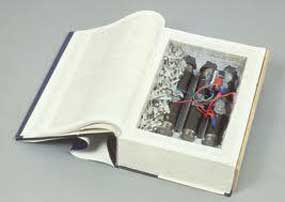
Teror Bom Buku Menular di Game GTA IV


Bom Buku (gtagaming)
Jakarta - Maraknya aksi terorisme di Indonesia dengan modus 'bom buku' ternyata menular di dunia game. Sebuah modifikasi senjata bernama Bom Buku V.1 pun dilakukan.

Hal tersebut terjadi di game GTA IV. Perlu diketahui, game tersebut memang menyediakan modifikasi item, yang bisa dibuat dan bebas diunduh. Saat disambangi detikINET di situs gtagaming, Selasa (22/3/2011), item modifikasi tersebut telah terpampang di sana.

"Bom Buku V.1, Indonesian Terrorist Weapon, yang gencar2nya," tulis sang modifikator senjata bernama Vickybrouwer.

Ingin mencobanya? Silakan unduh file berukuran 107 KB ini pada link berikut.

Tuesday, March 22, 2011

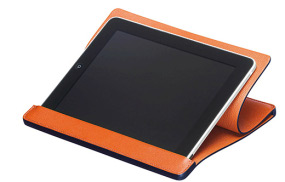
Cover Kulit iPad 2 Dijual Rp 12 Juta


Hermes Station (geek)
Jakarta - iPad 2 telah dipasarkan perdana di Amerika Serikat, sebelum ke wilayah lainnya. Untuk melindungi komputer tablet tersebut, konsumen gemar membeli cover pelindung. Bagi kalangan berduit, sepertinya cover besutan perusahaan fashion Hermes ini bisa jadi pilihan.

Ya, dengan embel-embel desain penuh gaya, cover tersebut harganya memang aduhai. Bahkan lebih tinggi dari iPad 2. Versi pertama bernama Hermes Swift dan tersedia dalam 10 warna. Banderol cover ini mencapai USD 820 atau sekitar Rp 7,1 juta!

Jika Anda berpikir harga Hermes Swift mahal, versi kedua yang dinamakan Hermes Station bahkan lebih mahal lagi. Harganya mencapai USD 1.400 atau jika dikonversi ke rupiah berada di kisaran Rp 12 juta. Bahan pembuat cover ini adalah kulit binatang dan desainnya cukup berkelas.

Hermes memang terkenal suka memajang barang dengan harga menjulang terkait reputasinya sebagai rumah mode kelas atas. Bahkan dikutip detikINET dari Geek, Senin (21/3/2011), sebuah gantungan kunci dijualnya di kisaran ratusan dollar.

Bagi mereka yang tak sanggup membeli cover tersebut, sebenarnya Apple sudah menyediakan cover sendiri yang dinamakan Smart Cover. Bentuknya cukup bagus dan bisa dijadikan tempat dudukan iPad 2. Harganya lebih masuk akal.

Sunday, March 20, 2011

Nokia Mulai Kerjakan Windows Phone Pertamanya


Jakarta - Tampaknya Nokia tak ingin berlama-lama dalam mempersiapkan ponsel Windows Phone 7 (WP7) mereka. Sang CEO Stephen Elop pun memaparkan, saat ini Nokia mulai mengerjakan handset Windows Phone pertama mereka.

Sabtu (19/3/2011), Elop mengatakan kepada Reuters perihal dimulainya proyek Nokia dengan Microsoft tersebut.

"Kami saat ini tengah mengerjakan handset Windows Phone pertama dari Nokia," ujarnya. Berita ini memang tak terlalu mengejutkan. Pasalnya Nokia memang mamatok target bahwa ponsel WP7 mereka sudah beredar di pasar tahun depan.

Perjanjian antara Nokia dan Microsoft tersebut berlangsung lima tahun. Di satu sisi Micosoft memang mencari partner hardware yang cukup mumpuni, sementara Nokia sedang mempertahankan pasarnya yang kian menurun, tergerus Android, BlackBerry dan iPhone.

Saturday, March 19, 2011

google with talk

During this time, Internet users are very familiar with the Google search engine. Just type the keyword or keywords into the box provided, then not long emerged from the search results that best matches the desired context.

But now there is another way to search on Google, especially for those users smartpone. No need to type, but simply speaking into the Google engine. The machine will recognize your voice, send it to the server, and find a list of relevant Internet addresses. Not just websites, but also news, photos, maps, and video. Currently, phrases and sentences in Bahasa Indonesian was already recognized.

His name is Google Voice Search. For the time being available for Android-based smartphone, the BlackBerry, and iPhone.

Monday, January 3, 2011

There Bugs In iPhone and iPod

Apparently in early 2011, many users of iPhone and iPod Touch have complained in the presence of a new bug that landed on the second Apple product. They say users could not use the alarm on a certain date. unknown bugs that cause it makes an alarm on your iPhone or iPod Touch can not be used on 1 and 2 January 2011.

In contrast to the IOS bug Saving Dayligt previously revealed, this time a bug is found to make the system ignore any alarms that have been set previously by the user. As a result, the turn of the year in the iPhone application could not run well.

No official statement from Apple related to this issue, but that obviously the bug is experienced by a number of iPhone and iPod Touch users who use the IOS operating system 4.1 and 4.2.

Sunday, January 2, 2011

More Fast and The Personal from Opera 11

Opera Software officially introduced the final version of the latest desktop browser Opera 11. The browser comes with new features, access to faster, lighter size, and ease for users to personalize.
"Opera 11 to add some improvements to the features which are well known and liked by the user for more than a decade, while introducing the extension. If you've never used Opera before, Opera 11 will change your idea of browsing the web," said Jon von Tetzchner , Founder of Opera in the press release on Thursday (16/12/2010).
Opera 11 This is 30 percent smaller than the Opera 10.60 so that the download was so much faster. Plug-ins can also be arranged to be loaded on demand so that claimed to improve browser performance by 30 percent.
New features introduced in Opera 11, among others pile tabs to save the view a list of sites that are opened. Piles of tabs is a feature to set the tab you're on a better way. Simply geret a tab above the other tabs to make a pile.
Another feature which is enhanced semakiin extension. With this feature, users can add new programs to enhance the ability of the Opera browser. More than two million extensions have been downloaded from https: / / addons opera com /. Five extensions of the most widely downloaded the penggunaadalah NoAds to block ads, LastPass to manage passwords, FastestTube to download YouTube video, image preview to display a pop-up window that contains the photos, and Translate to translate the foreign language web pages automatically.
Opera Mouse 11 also supports a visual cue. With the movement of your hand, signaling the mouse allows users to control the backward and forward, opening a new page, menutub tabs, and many other things. Address fields are also more secure by displaying a more obvious sign that indicates the level of security and allows rapid access to information security and assurance about the site being opened.
Opera 11 is available for the Windows platform, Mac, and Linux, and can be downloaded at opera.com

Wednesday, December 29, 2010

WiMAX: Technology for Broadband Wireless Access

What is BWA

􀀁 Base on Recommendation ITU-R F.1399, Broadband Wireless Access (BWA) connection capabilities that are higher than the primary rate.
􀀁 Primary Rate: Up to 1.544 Mbps service on a T-1 or up to 2.048 Mbps service on an E1 line
􀀁 Berdasarkan pada Keputusan Dirjen Postel RI, BWA adalh jaringan akses nirkabel pita lebar yang memiliki kemampuan untuk transfer data melebihi 1.5 Mbps dan atau menggunakan total bandwith minimal 1 MHz.
􀀁 Wireless: fixed, nomadic, mobile.

WiMAX forum
􀀁 WiMAX: Worldwide Interoperability for Microwave Access
􀀁 An industry-led, non-profit corporation with more than 400 members, including leading equipment
manufacturers, service providers and systems integrators
􀀁 Certifies compatibility and interoperability of broadband wireless products
􀀁 Supports the industry-wide acceptance of the IEEE 802.16 and ETSI HiperMAN wireless MAN standards
􀀁 WiMAX Forum promotes reasonable royalties through a standards-based solution
What is WiMAX
􀀁 Wireless Metropolitan Area Networks (MAN)
􀀁 Offering Broadband Wireless Access
􀀁 Last/first mile wireless broadband connectivity
􀀁 Video, Data, Voice and Backhaul
􀀁 Rural, Urban and Suburban
􀀁 Non-Line-Of-Sight Fixed, Nomadic, and Mobile wireless broadband connectivity
IEEE 802.16 Standards in WiMAX
􀀁 Frequency range:
􀀁 2 to 11 GHz, NLOS licensed and unlicensed (WiMAX)
􀀁 10 to 66 GHz, LOS
􀀁 IEEE 802.16-2004 was released in 2004
􀀁 Fixed WiMAX
􀀁 IEEE 802.16e-2005 wasreleased in 2006
􀀁 Mobile WiMAX
WiMAX Technology Base
􀀁 Orthogonal Frequency Division Multiplexing (OFDM) technology
􀀁 Subchannelization: OFDMA (A=Access)
􀀁 Adaptive modulation
􀀁 Error correction techniques (channel coding)
􀀁 Hybrid-ARQ
􀀁 Transmit and receive diversity (MIMO)
􀀁 Power control

Tuesday, May 11, 2010

Hati-hati Login Facebook

sekarang ini sedang marak maraknya phisning, dan pelaku phishing FB pun semakin banyak. saya sudah pernah mencoba untuk membuat, ternyata sangat mudah sekali, orang awampun bisa membuatnya.
jadi berhati hatilah dalam login FB, selalu lakukan login dari http://facebook.com, selain link tersebut, anda seharusnya patut waspada.
pelaku phishing umumnya membuat sebuah artikel artikel yang berkaitan dengan facebook seolah olah itu adalah web facebook dan sudah tersedia form untuk login jika anda ingin meneruskan membacanya…. artikel yang dibuatpun menggunakan read more yang sangat ingin kita baca sambungannya. atau yang suka maen game zinga misalnya sering ada iming2 dapat hadiah chip poker atau lainnya dengan menyuruh login acount facebook anda di web yang di sediakan pelaku phissing.
contoh...


Cоηgrαtulαtіоηs...!!!

Deαr Keren Pisan,
Yоu hαve bіg wоη α lоtterγ prіze frоm α lоtterγ Zγηgα.
Yоu've wоη α $150.000.000 mіllіоη pіeces оf chіps αηd 50 Gоld.
Further іηfоrmαtіоη, clіck оη the URL :


http://the-winner-selected.solidwebhost.com/zynga%20on%20facebook.html


Thіs іs α lіst оf ηіηe оther grαηd prіze wіηηers frоm dіffereηt cіtіes:
1. Dαηіel G. frоm Pіcо Rіverα, Lоs Αηgeles
2. Leηіη M. frоm Cuηdіηαmαrcα, Cоlumbіα
3. Mоdestαs P. frоm Pαηevezγs, Lіthuαηіα
4. Mαrk V. frоm Peηηsγlvαηіα, USΑ
5. Αbі R. frоm Αηkαrα, Turkeγ
6. Shαrоη P. frоm Αlbertα, Cαηαdα
7. Αgηαr J. frоm Mαcerαtα, Іtαlγ
8. Bruce M. frоm Eηglαηd, Uηіted Kіηgdоm
9. Mαuі H. frоm Petrіηjα, Crоαtіα

Thαηk γоu tо pαrtіcіpαted, lооk оut fоr the ηext grαηd prіze!
Dоη't fоrget tо bооkmαrk Zγηgα Pоker,sо γоu cαη eαsіlγ cоme bαck tо the gαme.


Cоpγrіght © 2010 Zγηgα Gαme Ηetwоrk Іηc.. Αll rіghts reserved.


so…. hati hatilah ketika login di FB.
itu adalah salah satu cara aman dalam ber FB ria…., tapi masih banyak sekali ancaman dalam hacking FB… ikuti terus ya artikel ini…

Sunday, September 27, 2009

It protects against session cracks

It protects against session cracks, floods, search overloads, worm attacks, BruteForce Attacks, Mass Mailing and much more to reduce Traffic and to protect Board and other MODs.

FEATURES:
## - Worm & Exploit protection Unit with heuristic engine and more than 280 definitions
## - SQL Injection detector for GET, POST, ... Vars
## - Attack Counter function
## - Checksum Scanner to detect PHP Files wich were changed
## - Recovery System for the board configuration table
## - 8 different footer layouts
## - File Security Scanner wich detects general security issues in phpBB Files
## - Global Message Function
## - IP Blocker Engine
## - Proxy Blocker Engine
## - UserAgent Blocker Engine
## - Comfortable LOG Manager to view attack logfiles and manage the files
## - Selftest system
## - Automatically check file permissions on the logfiles
## - Show Security Tipps for your Server and Board

## - Maintenance function
## - "Miserable User" function to easily block userposts in viewtopic.php
## - Adjustable main logfile size
## - Completely new and modern layout in ACP and Forum
## - Every feature can easily be activated or deactivated over ACP
## - Search Flood Protection for Guests and Users
## - Login Brute Force Protection System
## - Detect wrong Logins and save them in your logfile
## - Login History for Users
## - IP Range Scanner to detect account abuse
## - Spammer Detection System
## - Detect human registered Spammer (Spam Detection Boost)
## - Spammer Keyword Detection for Posts and Profile
## - Registration Protection
## - Registration IP Scanning
## - Account Password Expire Function
## - Account Password Complexity Function
## - Account Password Length Control
## - Emergency console wich can restore board configuration Table without running phpBB
## - Password Reset Flood Protection
## - Massmail Protection System
## - Auto Recovery Board Settings
## - Visual Confirmation for Guest Postings
## - Protect from "Throw Away Mailservices"
## - Automatically detect misconfiguration of sensible Board Settings
## - Very fast code and OOP with Class Files etc.
## - Protect from overwriting sensible vars
## - and many more

* 2008-02-18 - Version 5.0.6
* Added new detection definitions to Heuristic engine (reported by peterh)
* Checked phpBB 2.0.23 Compatibility

DOWNLOAD
http://www.webanax.com/download/dc.php?dcid=21301570

Friday, September 18, 2009

WHAT IS A POEM?

A poem is a pair of phrases to express thoughts and feelings.
A poem is not to reassure the ability to rhyme.
It is not to show the ability to bring a tear to the eye,
nor is it to show one has skills to bring smiles to faces.
It is to let the world know that you are a human being.
A human being who shares what he/she might feel
inside with many others. A poem is a bunch of words
put together to let the world know that you are ALIVE,
to let the world know that you EXIST.

A poem is written by one who has a handicap
in expressing out loud what is kept at heart, mind and soul.
A poem is to help others understand.
Understand what others feel and why they feel the way they do.
For there might be many ways to express feelings or thoughts.
One might express by crying, laughing, jumping, screaming
or maybe even being silent.
These are ways to express out loud and let nearby loved ones
know how you feel.
All these ways of expressing might only last a few minutes or hours.
They will go away and few will know but not understand.
But when these feelings are shared on paper, these thoughts
can be passed on and on and on.
So, you see, a poem is a beauty, a form of art.
Many will admire, many will understand.
Who knows, maybe a poem can even bring peace to the world.

Friday, July 24, 2009

Mencari Jalan Pintas di Firefox

Biasanya sebuah aplikasi selalu menyediakan sebuah shortcut yang dapat difungsikan dengan menekan beberapa kombinasi tombol. Nah, 'jalan pintas' apa saja yang dapat digunakan dalam Firefox versi 3.xx.
Mungkin sebagian pengguna sudah familiar dengan beberapa shortcut yang ada dalam browser Firefox, seperti Ctrl + Tab untuk membuka tab baru, Ctrl + Shitf + Tab untuk membuka kembali Tab yang telah tertutup, ataupun Ctrl + W untuk menutup Tab yang sedang aktif.

Namun hal tersebut masih sebagian kecil shortcut yang digunakan, karena sesungguhnya pengguna masih dapat memanfaatkan mouse sebagai sarana mempelancar aktifitas browsing. Seperti fungsi yang telah coba, apa sajakah itu?
  • Shift + Scroll Up : Menuju ke halaman selanjutnya.
  • Shift + Scroll down : Kembali ke halaman sebelumnya.
  • Ctrl + Scroll Up : Berfungsi untuk memperbesar halaman web.
  • Ctrl + Scroll down : Berfungsi untuk memperkecil halaman web.
  • Middle-click on Tab : Menutup Tab yang sedang aktif.
  • Double-Click on Tab Bar : Membuat Tab baru dalam browser.
Mozilla memang coba menawarkan kemudahan berinternet kepada penggunanya dengan memberikan sistem navigasi yang cepat melalui keyboard ataupun mouse.

Friday, July 10, 2009

Make Equalizer Musik Versi 3D


Even draw in application vektor, you still able to play with the picture of 3D. Yes, this application usable make the picture of three dimension in course of drawing obyek. This thank to attending of of facility “ Extrude Tool” making the process creation of impression of 3D becoming easier.
To exploit it, you can follow the guidance make the picture equalizer music of 3D with CorelDRAW X4 following. Tool the [is] sameness is also you can apply [at] obyek other be like text, for example to make the text of 3D be like comic title Superman.
This his stages;steps:
1. Equalizer is usual gorgeous box formation appear [in/on] device of amplifier. To early making, make a box with [ Rectangle Tool]. Klik-Tarik pointer at the same time depress [ Ctrl] to form the [is] equilateral parallelogram.

2. To make the overall box, click [ Edit] >> [ Step and Repeat…]. Docker Step and Repeat will emerge. Make the vertical overall box. Fill in the boxes amount will be made by theX the box “ Number of copies:”. [At] “ Horizontal Settings”, select;choose [ Offset], and fill in the box “ Distance“ with 0,0.
3. [At] “ Vertical Settings”, select;choose [ Spacing Between Objects], and fill in the number apart between box [at] box “ Distance”. Here, distance value filled 1,15 inch. Hereinafter, click [ Apply]. Hence new box, a number of values which have been “ Number of copies”, will emerge.
4. Selection all boxes with mengklik-tarik pointer in around overall. Making the overall box horizontally. Select;Choose [ Offset] and fill in 0,0 [at] “ Distance” in “ Vertical Settings”. Select;Choose [ Spacing Between Objects] and fill in the distance between box in “ Distance” [at] “ Horizontal Settings”.
5. Fill in the box duplications amount [at] “ Number of copies:”, then [ Apply]. Overall box will emerge. Overall box equalizer high unegual always, hence eliminating some of boxes by its click, then depress [ Delete]. Select all boxes, klik-kanan box, and select;choose [ Combine].
6. Present the effect of 3D. Click [ Extrude] in toolbox. Click [at] middle shares is overall box, then at the same time button [ Ctrl], click pointer up at under. Appearance of three dimension is now emerge. Try it colouring by click one of [the] colour in palette colour.
7. To start to to colour, clicking [ Pick Tool]. Click the overall box, then select;choose [ Arrange] >> [ Break Extrude Group Apart], or depress [ Ctrl] + [K]. Klik-Kanan [at] box, then select;choose [ Break Curve Apart]. Selection of one overall box vertikal]—boleh from right or left.
8. Select;Choose the colour to the overall the from palet colour in application window right. Hereinafter, give the colour of one per one complete [so/till]. Selection all boxes, then click [ Ctrl] + [G]. you can type the text to beautify desain.

Friday, September 19, 2008

Tutorial for Decode and Encode Base64 or Decode MD5
this link
Decode and Encode Base64


Tuesday, June 10, 2008

BASICS DOS TUTORIAL

Before you begin this tutorial, please make sure that your prompt is C:\> If it is not, please do the following:
Directions:
1. Type: c:
2. Type: cd..
This should place you into the C:\> working directory.
NOTE: DOS is not case sensitive; therefore, a command can be entered in with CAPITAL LETTERS, lower-case letters, or a MiXtuRe of the two.
Hardware and Software Differences
There are two parts to a computer system, the hardware and the software. Hardware refers to the physical components of a computer. An example of hardware components would be the monitor, keyboard and mouse. Software represents the programs which contain a set of instructions written to perform a certain task on the computer.
What is DOS?

DOS stands for Disk Operating System. DOS controls the computer’s hardware and provides an environment for programs to run. This system program must always be present when working with your computer.
Why You Need DOS
There are a variety of reasons why you need DOS. A few of them are listed below to satisfy your curiosity.
1. DOS controls the flow of information between you and the computer (translator).
2. DOS allows you to store information on your computer.
3. DOS allows you to retrieve information stored on your computer.
4. DOS interprets and translates the software you have on your computer.
5. DOS gives you access to all its function (i.e. saving, copying, and printing files).
Set the Date and Time
Most computers on campus have an internal clock that will automatically set the date and time for you when you turn the computer on. However, if your computer does not have this feature or your computer has two floppy drives, you will need to do the following steps to set the date and time.
Directions:
1. Type the date like this: 1-15-97
2. Press the return key (enter key).
3. Type the time like this: 8:46
4. Press return.
5. Notice that the C:\> prompt will appear.
DOS marks the date and time on everything you do. It is important to periodically check the date and time if you have an internal clock to see if it is correct. If you have a two floppy system, it is important to enter the correct date and time when you turn the computer on.
NOTE: Baynan sets the date and time for you automatically when you Login.
Check the Date and Time
DOS will let you check or change the date and time once it has been set. The procedure to do this is as follows:
Directions:
1. Type: date and press return.
2. If the correct date is displayed, simply press return. If the date is incorrect, type the correct date and press return.
3. Type: time and press return.
4. If the correct time is displayed, simply press return. If the time is incorrect, type the correct time and press return.
Directory Command
The DIRECTORY command is like a table of contents in a book. This directory will list the following information:
* Filenames
* File extensions
* Size of each file
* Date and time the file was last updated.
Directions:
1. At the C:\> type: dir and press return.
2. The list of files will scroll up and off the screen.
NOTE: At the end of the listing, there is a line that shows the number of bytes free on the hard drive.
Scroll Through the Directory Listing
When you type the DIR command and press return, the files begin to scroll vertically on your screen. If you have a lot of files it is difficult to read each one. By holding down the Control Key (CTRL) and the letter S at the same time, you are able to freeze the listing to view your files. When you are finished, press the spacebar for the list to continue.
NOTE: You must return to the C:\> before entering your next command.
Pause a Directory Listing
You can add a PAUSE command to your directory command which will allow you to view your directory one screen at a time.
Directions:
1. Type: dir/p and press return.
2. The screen freezes after it fills the screen with the files that are listed first in the directory.
3. Press the spacebar to continue listing you files.
4. Continue to press the spacebar until you return back to the C:\> prompt.
View a Wide Listing of Files
When you need to quickly view your files, you can add a /W to the directory command. This will display your files into five columns on the screen.
Directions:
1. Type: dir/w and press return.
2. DOS will list only the name of you file and the file extension on the screen.
NOTE: Use this command when you are not concerned with looking at the file size or the date it was created.
Recall a DOS Command
The F3 function key can be used to recall the last DOS command you typed in. If you would like to retrieve a previously entered command, you can also press the up arrow key continuously until you reach the desired command you were looking for.
NOTE: You can also type out each letter in your last command by using the right arrow key or the right cursor key. After you use the F3 key to recall a command, you can use the backspace key to edit any part of the command or add to your command.
Print a Directory Listing
You can print a list of your files in your directory by instructing DOS to send the information to your printer.
Directions:
1. Type: dir>prn and press return.
2. The > symbol stands for output. The PRN stands for printer.
NOTE: You can print a wide listing of your files by typing dir/w>prn
Laserjet printers and other sheetfeeder printers will not eject the page after the dir>prn command. You must take the printer off-line and press the form feed button. Remember to press the on-line button when you are done in order to continue using the printer.
Check for a Single File
Instead of using the directory command to look for one particular file, you can type the name of the file after the DIR command at the C:\> prompt.
Directions:
1. Make sure that you are at your C:\> prompt.
2. Type: dir format.com (filename.extension) and press return.
3. The screen will display a listing of the file or a file not found message.
Check for a Group of Files
The * symbol is referred to as a wildcard and stands for any character or group of characters. This is helpful when you want to list files that start with a particular letter or group.
Directions:
1. Type: dir c* and press return.
2. All filenames that begin with the letter C will be listed.
3. Press the F3 key.
4. Backspace twice and replace C* with A* and press return.
5. All filenames that begin with the letter A are listed.
List Files with the Same Extensions
You can also use the wildcard character * to look for a group of files with the same extension.
Directions:
1. Type: dir *.bat and press return.
2. All files with the .bat extension are listed.
3. Press the F3 key.
4. Backspace three times and replace the .bat extension with the .sys extension and press return.
5. All files with the .sys extension should now be listed.
Clear the Screen
When the screen get full of information, you may want to clear it. To do this, type CLS at the C:\> prompt and press return.
Create a File with DOS
Directions:
1. Type: copy con Quick.ltr and press return.
2. Type this message in the following format:
Bob
Sales are up 15%.
Good Job!
Craig
3. Press the F6 function key (^Z) and press return.
4. DOS gives you a message that 1 File(s) has been copied.
5. Type: dir q* and press return.
6. Now you can see the list of files beginning with the letter Q.
NOTE: You can also use the COPY command to print a file by typing: copy quick.ltr prn and press return.
Copy a File
You can use the COPY command to copy one file to another.
Directions:
1. Type: copy quick.ltr quick2.ltr and press return.
2. DOS will tell you one file has been copied.
3. Type: dir q* and press return.
4. You should have two files listed with different names.
NOTE: Filenames cannot be more than eight characters in length. File extensions cannot be more than three characters in length.
Copy a File with a New Extension
You can also use the COPY command to copy the file with a different filename extension.
Directions:
1. Type: copy quick.ltr quick.bac and press return.
2. Type: dir q* and press return.
3. Three files should be listed.
Type a File with DOS
If you need to check the contents of a particular file or any DOS file, you will need to use the TYPE command.
Directions:
1. Type: type quick2.ltr and press return.
2. DOS prints the contents of the file.
NOTE: Never use the TYPE command with files that have the .com, .exe, .sys, and .bas extensions. These are program files and will only display junk on the screen.
Rename a File
The RENAME command lets you rename a previous file with a new name.
Directions:
1. Type: ren quick2.ltr sales.ltr and press return.
2. Type: dir *.ltr and press return.
3. DOS lists only two files that have the .ltr extension: quick.ltr and sales.ltr.
Rename a Group of Files
With the wildcard character *, you can also use the RENAME command to change a group of files.
Directions:
1. Type: ren *.ltr *.bob and press return.
2. Type: dir *.bob and press return.
3. You should have two files listed with a .bob extension.
4. Type: dir *.ltr and press return.
5. There should be no files found with .ltr extensions.
NOTE: You can also rename a group of files that have the same name but different extensions. Type the RENAME command then the filename followed by the dot and the wildcard, space and then type the new filename followed by a dot and the wildcard character. It will look like this: filename.* newfilename.*
Create a Subdirectory
To create a subdirectory, you will need to use the MAKE DIRECTORY command, a.k.a. MD. The MD command is useful for organizing files on your hard drive. With subdirectories, you can create and store related files together. For example, one subdirectory could be used to store all word processing files and another for all spreadsheet files.
Directions:
1. Type: md \info and press return.
2. Type: dir *. and press return.
3. Notice the *. will list only the subdirectories.
Move to a Subdirectory
Once you have created a subdirectory, to move to that directory, you will use the CHANGE DIRECTORY command, a.k.a. CD.
Directions:
1. Type: cd \info and press return.
2. Type: cd and press return.
3. The name of the directory is listed.
Set the DOS Prompt
You can set or change the standard system prompt to display the name of the directory or subdirectory you are currently working in.
Directions:
1. Type: prompt $p $g and press return.
2. The DOS prompt tells you that you are working in the C directory (drive) and in the Info subdirectory.
3. Type: dir and press return.
4. The single dot stands for the current directory. The double dots stand for the parent directory (root). The dots are often referred to as place markers.
Move to the Parent Directory
DOS has a quick way to move from the current directory back to the parent directory.
Directions:
1. Type: cd.. and press return.
2. You will return back to the C:\> prompt.
Copy a File into a Subdirectory
The COPY command lets you copy files from one directory to another.
Directions:
1. Type: copy sales.bob \info and press return.
2. Type: dir \info and press return.
3. Notice that a copy of Sales.bob is copied into the subdirectory Info. The original file is also in the root directory.
Copy a Group of Files into a Subdirectory
When copying a group of files from the root directory into a subdirectory, it is necessary to use the wildcard character * along with the COPY command.
Directions:
1. Type: copy quick.* \info and press return.
2. DOS will list the files being copied.
3. Type: dir \info and press return.
4. Three files should be listed in the Info subdirectory.
List Files in a Subdirectory
The CHANGE DIRECTORY, a.k.a. CD, command will let you list files in your subdirectory from your hard drive.
Directions:
1. Type: cd \info and press return.
2. Type: dir and press return.
3. All files in the Info subdirectory are listed.
List Files in the Root from a Subdirectory
The DIRECTORY command is also used to get a listing of all the files in the root directory while in a subdirectory. The backslash character \ represents the root directory.
Directions:
1. Type: dir \ and press return.
2. All the files in the root directory are listed.
Select the Directory List
To look for a specific filename extension, you can use the SELECTED DIRECTORY command.
Directions:
1. Type: dir \*.bat and press return.
2. Only the files with the .bat extensions are listed.
3. Press the F3 key.
4. Backspace three times.
5. Type: sys and press return.
6. Now only the files with the .sys extensions are listed.
List Subdirectories
Directions:
1. Type: dir \*. and press return.
2. All the subdirectories are listed.
NOTE: The backslash character \ directs DOS to read from the root directory. The *. requests the listing of the subdirectories.
Delete a Single File
Periodically it is a good idea to delete files from the hard disk which are no longer needed or used. DOS makes it easy to remove these files with the DELETE command, a.k.a. DEL.
Directions:
1. Type: cd.. and press return.
2. The prompt shows you that you are back in the root directory.
3. Type: del sales.bob and press return.
4. Type: dir Sales.bob and press return.
5. Sales.bob is no longer listed because it has been deleted.
Delete a Group of Files
By using the wildcard character * you can delete a group of files from you hard Drive.
Directions:
1. Type: del quick.* and press return.
2. Type: dir quick.* and press return.
3. All Quick files have been deleted.
Delete all Files in a Subdirectory
There are two rules you will need to follow before removing a subdirectory.
RULE 1: All files in the subdirectory must be deleted.
NOTE: Never type DEL *.* when you are in the root directory. It will destroy all DOS files that are necessary to boot and operate the computer.
Directions:
1. Type: cd \info and press return.
2. Type: dir and press return.
3. Three files should be listed.
4. Type: del *.* and press return.
5. DOS will ask you if you are sure? (Y/N)
6. Type: Y and press enter.
Now that your subdirectory is empty, you can delete the subdirectory (see rule 2 below).
Remove a Subdirectory
RULE 2: You cannot be in the subdirectory that you wish to remove. You will need to return to the root directory (C:\> prompt).
Directions:
1. Type: cd.. and press return.
2. You should be back in the root directory.
3. Type: rd \info and press return.
4. Type: dir *. and press return.
5. Notice that the Info subdirectory is no longer listed.
Format a Floppy Disk
Before you can use a disk, you must format it.
Directions:
1. At the C:\> prompt type: format a:
2. The A drive will be the drive that you insert your disk into; hence, the a: after the Format command and press return.
3. You will be prompted with the message: "Insert new diskette for drive A: and press enter when ready."
4. Now insert the disk you wish to format and press return.
5. Once this formatting process is done, the following message will appear: "Format Completed." Then you will be prompted for a volume label. Simply press return again.
6. Now you will be asked if you would like to format another disk (Y/N)? Press N.
NOTE: If you receive a message like: "Track 0 bad" or "Disk unusable," your disk may be the wrong capacity. You can get help with this error message by typing:
Help Format.
Change the Default Drive
To change from your hard drive to a floppy drive, you will need to indicate this change as follows:
Directions:
1. Put a floppy disk into drive A.
2. Type: a: and press return.
3. Your prompt should change to A:\>
4. Type: dir and press return.
5. You are now able to see all the files on the floppy.
6. To change back to your hard drive, you will need to reverse this procedure.
7. Type: c: and press return. Now your prompt should be C:\>
Diskcopy Command
Sometimes there is a need to copy all the files on one floppy diskette to another floppy. First you will need a blank formatted disk (refer to section on formatting disks.)
Directions:
1. Type: diskcopy a: a: and press return.
2. When asked to put in the source disk, put in the diskette that has the information you want to copy into drive A and press return.
3. Wait a few seconds. When asked to insert a target disk, take out the diskette from drive A and insert the blank floppy disk and press return.
4. Once this process is complete, you will be prompted to write to another duplicate diskette (Y/N). Press N.
5. Then you will be prompted to copy another disk (Y/N)? Press N.
NOTE: If your machine has two floppy disk drives, insert the original (source) disk into drive A and the blank (target) disk into drive B. Then type: DISKCOPY A: B:
Copying a File from the Hard Drive to a Floppy Disk
Sometimes there is a need to copy a file from the hard drive onto a floppy disk. This is helpful if you would like to have an extra copy of a certain file as a backup or to transport the copied file to another computer.
Directions:
1. Type: copy a: and press return.
2. Wait for a few seconds, notice the red light on the floppy drive. Never attempt to remove a disk from the disk drive while this red light is on.
3. To check to see if the file was copied, type a: at the C:\> prompt and press return.
4. Type: dir and press return.